Why Is My Laptop Battery Draining So Fast? Causes & Fixes
Why is my laptop battery draining so fast? Check battery health, find power-hungry apps and fix settings on Windows and Mac, then check if it needs replacing.
Why is my laptop battery draining so fast? The short answer
If you’re asking why is my laptop battery draining so fast, the cause is either software or a worn battery. Software means settings, apps running in the background, a bright screen or things plugged in. Wear means the battery can no longer hold as much charge as it did when new. You can tell which one you have in about ten minutes by checking the battery’s health first, then working through the fixes below.
This guide covers the same problem whether the drain is gradual or sudden, and whether you use Windows 10, Windows 11 or a Mac.
What you will achieve and what you need
By the end, you will know why your laptop battery is draining so fast. You will have squeezed out as much runtime as you can without spending money. You will also know the warning signs that mean the battery itself needs replacing.
You need:
- The laptop and its charger
- About 15 minutes
- Windows 10, Windows 11 or macOS (steps for each are marked)
Menu names change slightly between system versions. If a path below does not match your screen, use the Settings search box and type the name of the setting.
How to fix a fast-draining laptop battery, step by step
The steps are in five groups. The first group tells you whether the cause is a worn battery or a software problem. That shows you how much effort the rest is worth.
Step group 1: Check battery health
A battery loses some of its capacity as it ages. The health report compares two numbers: what the battery was designed to hold, and what it can hold now.
On Windows:
- Right-click the Start button and choose Terminal or Windows PowerShell, whichever your PC shows. You do not need the Admin version.
- Type
powercfg /batteryreportand press Enter. - Windows creates a file called
battery-report.html, usually in your user folder. The terminal prints the exact location, so note it. - Open that folder in File Explorer and double-click the file to open it in your web browser.
- Find the Design capacity and Full Charge Capacity fields, as named in HP’s guide to the Windows battery report.
Design capacity is what the battery held when new. Full Charge Capacity is what it holds now. The command only generates a report file for you to read. It does not repair or change anything.
On a Mac:
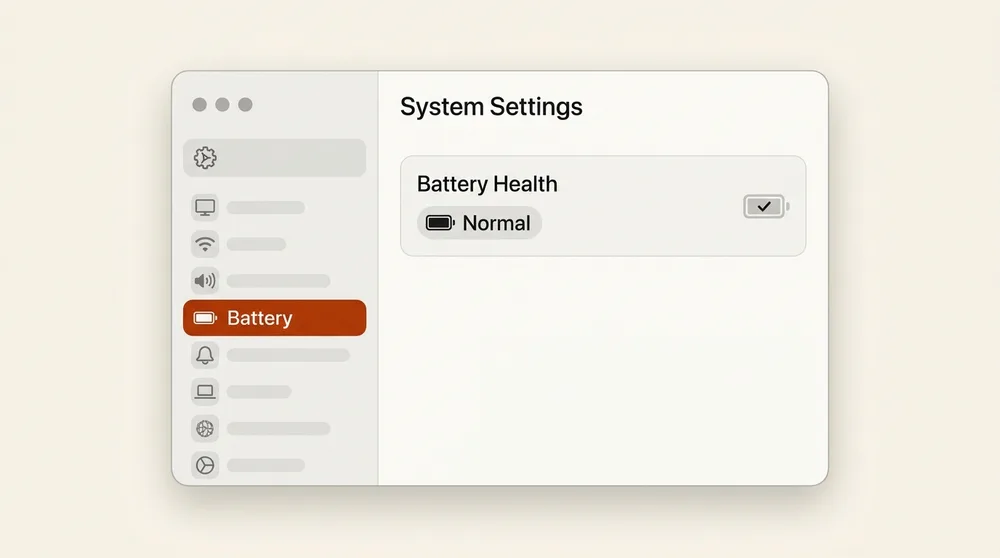
- Open the Apple menu and choose System Settings, then Battery, and click the info button next to Battery Health.
- Look at the Battery Health section. It shows either Normal, meaning the battery is working normally, or Service Recommended, meaning its ability to hold a charge is lower than when it was new or it is not working normally. Apple explains both labels in Apple’s battery guide.
How do you judge the result? Apple says a normal Mac battery should keep up to 80% of its original capacity at its maximum cycle count, as explained in Apple’s cycle count guide. A cycle is roughly one full charge and discharge. If your current figure is far below the design figure, wear is a likely cause. If it is close, software is the more likely culprit.
Common scenario: When a laptop drains quickly, the cause is usually either runaway background software or a worn battery. If the Windows report shows Full Charge Capacity still close to Design capacity, focus on settings and apps rather than buying replacement hardware.
Step group 2: Rule out the quick causes
Three settings account for a lot of battery use: what your apps are doing, how bright the screen is, and how soon the laptop sleeps.
- Windows: on Windows 11, go to Settings > System > Power & battery > Battery usage. On Windows 10, go to Settings > System > Battery and select See which apps are affecting your battery life. Both screens list the apps that used the most battery.
- Mac: open System Settings, choose Battery, and look at the usage history.
- Look for an app near the top that you were not using. Note its name for the next step group.
- Lower the screen brightness. Microsoft and Apple both recommend dimming the screen to save battery, so turn it down to the lowest level that is still comfortable. On Windows 11, select the network icon on the right side of the taskbar and drag the Brightness slider, or go to Settings > System > Display. On Windows 10, use the brightness slider in action center. On a Mac, use the brightness keys or open Control Center and drag the Display slider.
- Shorten the time before the screen turns off and the laptop sleeps when on battery. On Windows 11, go to Settings > System > Power & battery > Screen, sleep & hibernate timeouts. On a Mac, go to System Settings > Lock Screen and lower Turn display off on battery when inactive.
Step group 3: Cut background drain
Apps that run when you are not looking keep the processor busy, and a busy processor uses more power. Closing them and stopping them from launching at startup is free.
- Windows: press Ctrl + Shift + Esc to open Task Manager, then check the Processes tab.
- Mac: open Activity Monitor and click the Energy tab.
- Select an app that is using a lot of energy and that you do not need, then close it.
- On Windows, open the Startup apps tab in Task Manager. Select a program you do not need at login and choose Disable, as described in Microsoft’s startup apps guide.
- On a Mac, remove login items you do not need.
The same cleanup also helps a sluggish laptop. Our guide to speed up a slow laptop goes deeper on startup programs.
Pro tip: Lowering screen brightness and disabling startup programs you do not need costs you very little in daily use. Stopping non-essential software from launching automatically also stops hidden background activity from using power all day.
Step group 4: Adjust power settings
Both systems have a built-in mode that trades a little speed for longer battery life.
- Windows 11: go to Settings > System > Power & battery, find Power mode, and choose Best power efficiency. The other options are Balanced and Best performance.
- Windows 10: select the battery icon on the taskbar and drag the slider toward Best battery life. Microsoft ended support for Windows 10 on October 14, 2025, so moving to Windows 11 is worth it if your laptop can run it.
- Turn on the battery-saving mode. On Windows 11 it is called Energy saver (Settings > System > Power & battery > Energy saver). On Windows 10 it is Battery saver, in Settings > System > Battery.
- Mac: open System Settings > Battery and set Low Power Mode to Only on Battery or Always.
- If your laptop has a high refresh rate screen, such as 120 Hz, lower it, or on Windows 11 turn on Dynamic refresh rate in Settings > System > Display > Advanced display. Refresh rate is how many times per second the screen redraws.
Step group 5: Check what is plugged in or switched on
Anything the laptop powers or keeps connected can add to the drain.
- Unplug USB devices you are not using, such as external drives, dongles and phones.
- Turn off the keyboard backlight if your laptop has one.
- Switch off Bluetooth if you are not using a wireless mouse, headphones or other accessory.
- If you are working offline, turn off Wi-Fi or use airplane mode.
After each group, check how quickly the percentage falls over the next half hour of normal use. This shows you which change actually helped.
Protect battery lifespan with charge limits
Some laptops can stop charging before 100%, which may slow wear over the years. This does not give you more runtime on a single charge. It is about keeping the battery healthy for longer.
On a Mac, the feature is called Optimized Battery Charging.
On Windows, there is no single built-in switch that all laptops share. Check your laptop maker’s support pages to see whether your model offers a charge limit option.
If your laptop does not offer one, you cannot add it with Windows settings alone. Habits matter too: Apple warns that temperatures above 95°F (35°C) can permanently reduce battery capacity, so keep your laptop out of hot cars and direct sun. If you will not use it for months, store it about half charged, not full or empty.
Signs your laptop battery needs replacing
Software fixes cannot restore a battery that has worn out. Watch for these signs:
- A health reading far below the design figure, as in step group 1
- A laptop that shuts down suddenly with charge still showing
- A battery or the underside of the laptop that gets unusually hot
- A bulging or swollen battery, which may show as a lifted trackpad, a gap in the case, or a laptop that no longer sits flat
If the battery looks swollen, stop using the laptop and unplug it. Do not press on it, charge it or try to puncture it.
Mistake to avoid: Opening a sealed laptop to swap the battery yourself can be hazardous and risks damaging delicate parts. If the battery is worn out or swollen, take the device to a certified repair technician for safe fitting and proper disposal of the old battery.
Replacement costs money, and it is not always worth it. It makes sense when the laptop is otherwise fast enough for what you do and the battery is clearly the weak point. It makes less sense on an old laptop that is also slow, running out of storage or no longer receiving updates. Check what the manufacturer or a repair shop quotes for your exact model before deciding.
Common problems and fixes
The drain started suddenly after an update
Open the battery usage list from step group 2 and look for an app that now sits near the top. After a big update, a system may spend a while doing background work. Restart the laptop, wait a day or two, and check again. If one app keeps topping the list, close it, update it or remove it.
A new laptop is draining fast
Check the health report anyway, since it rules out a faulty battery. Then apply the settings in step groups 2 to 4.
The battery drains while the laptop is asleep
Close apps that sync or download before closing the lid. As a test, shut the laptop down fully overnight instead of sleeping it and compare the percentage in the morning. If a full shutdown loses almost nothing but sleep loses a lot, an app or a connected device is waking the laptop.
The battery is fine but the laptop runs hot
Heat makes fans work harder and uses more power. Check Task Manager or Activity Monitor for an app using lots of processor time. Make sure the vents are not blocked by a bed, sofa or lap. Heat can also slow a laptop down, which our guide to why your laptop is so slow explains in more detail.
Health looks fine but runtime is still short
Heavy tasks such as video calls, games and video editing use far more power than reading or writing. A high-resolution, high-brightness screen also takes a large share. Work through step groups 2 to 5 again, one change at a time.
FAQ
Why is my laptop battery draining so fast all of a sudden?
A sudden change usually points to software: a new app, an update or a background process stuck at high activity. Check the battery usage list and Task Manager or Activity Monitor for the culprit. If nothing stands out and the health report shows low capacity, the battery may have worn faster than expected.
Is 2 hours of battery life normal?
It depends on the laptop, the screen, and what you are doing. Compare your runtime with the manufacturer’s stated figure for your model and with how long it lasted when new.
Does closing my laptop lid stop battery drain?
Not always. Sleep still uses a small amount of power, and a background app or connected device can make it use more. Try the overnight shutdown test described above.
Summary
Start by reading your battery’s health report, because it tells you whether wear or software is the likelier cause. Then check the battery usage list, close power-hungry apps, and disable startup programs you do not need. Switch on a battery-saving mode, unplug what you are not using, and consider a charge limit if your laptop offers one. Plan to replace the battery through a certified technician if the health reading is very low. Do the same if it gets hot, shuts down suddenly or looks swollen.